
The screenshots show the Russian interface.
Connection · Workflows · Extensions for your business
The AssistBot integration with MoySklad can be extended to fit your business processes. We connect the entities, documents and fields you need, both as notification triggers and conditions and as data for your messages.
These can be standard fields, your custom fields and information from related records. If the document, field or rule you need is not yet available in the settings, we will add it for your use case; custom logic can be developed separately.
For example, you change an order's ready date. With a custom configuration, this field determines both when to send the notification and what it says.
A change to the selected field triggers the workflow.
The date, customer name and order number are inserted into the message.
1. What you can configure and extend
The list of documents and fields in the form shows what is already connected to the integration. It can be extended to match your records.
- On your own: connect your account and channels, select the available documents and events, and specify the fields to monitor, recipients and message. Use the suggested variables, enable or disable templates, and set up customer re-engagement.
- With support: we will connect the required entity, document or field and select data from related records. For example, we can review a purchase order notification and add this document to your workflow.
- With custom development: we will implement special conditions, precise monitoring of your custom field, calculations or complex relationships between objects. We first agree on the expected behavior and scope of work, then verify the result.
When reviewing your requirements, we check which events and data are available through the MoySklad API. This determines what can be configured directly and where the integration needs adapting.
2. How to connect AssistBot
- Install the AssistBot app in MoySklad and open its settings.
- Specify whether you already have an AssistBot account. For an existing account, have your token ready. If you do not have an account, complete and submit the application. Follow the message shown after submission and wait for your account credentials and token.
- Select “Standard operating mode”, enter your AssistBot token and click “Complete connection”. If you need separate connections for individual warehouses, discuss the setup with support.
- Connect your messengers in the AssistBot account dashboard.
- Return to the app in MoySklad and configure your first notification. Start by testing delivery to your own number.
The token links the integration to your AssistBot account. “Added” means it has been entered in the settings. Send a message through a test workflow to verify the connection.
If the application form asks for a WhatsApp number but you plan to use another channel, contact support and we will help you connect.
Where to find the settings
In the MoySklad app: events, conditions, recipients, notification text and the “Customer re-engagement” tab.
In the AssistBot dashboard: communication channels, conversations, fallback delivery, bulk messaging, automatic replies, the blocklist and AI agents.
3. Setting up communication channels in your account dashboard
- Open the AssistBot account dashboard and go to “Account settings” → “Communication channels”.
- Click “Add communication channel”, select a messenger and follow the instructions to authorize it.
- After connecting, check that the channel card shows the status “Authorized”. To change channel settings, use the “Edit” button.
Channel subscription
Adding a channel creates a separate subscription to the “Optimal” plan. This subscription is paid for in your AssistBot dashboard separately from the solution in the MoySklad marketplace. Current pricing is available on the integration page.
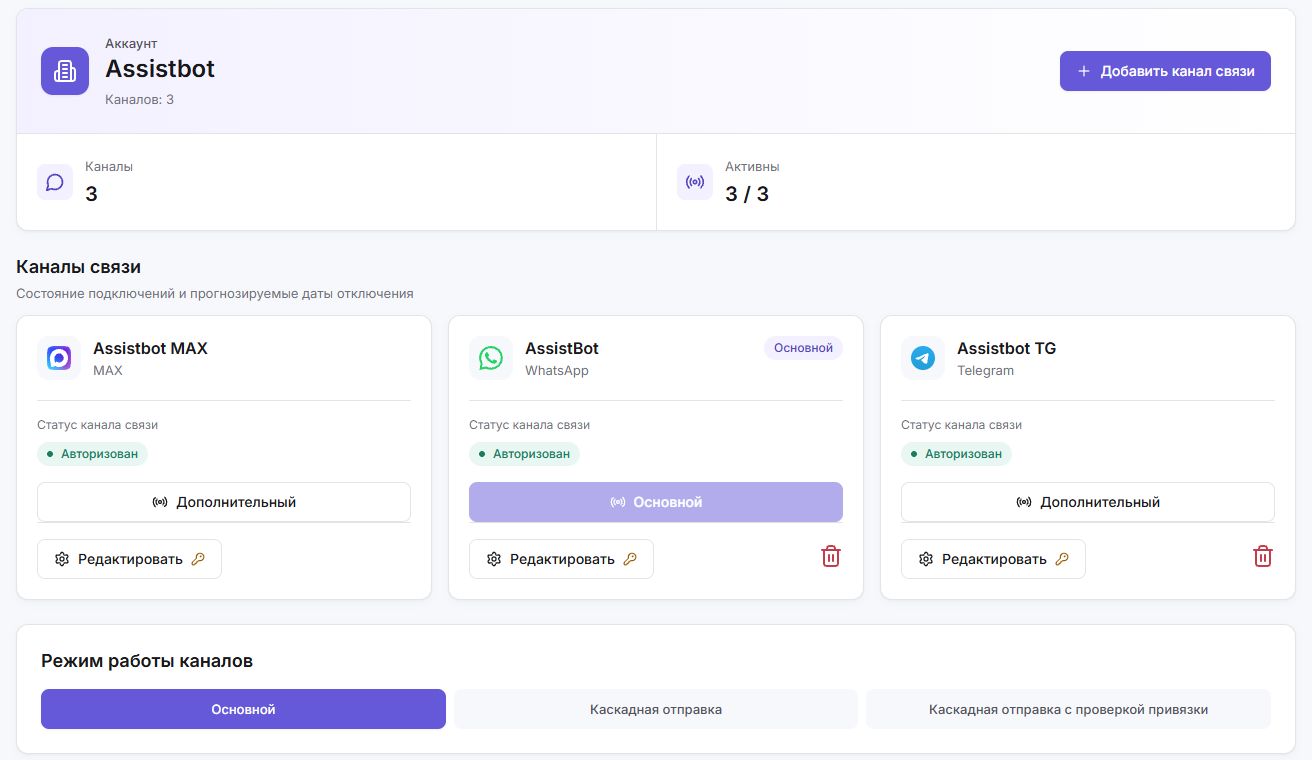
4. Your first notification: order ready for pickup
Start with a standard workflow: an order moves to the selected status and the customer receives a message containing their name and order number.
Step 1. Create a template
Open “Document events” and click “+ Create template”. In “Template name”, enter a name your team will understand, such as “Order ready for pickup”. Leave “Enable template” switched off while preparing the workflow.
Step 2. Select an event and condition
In “Event”, select “Sales order | Update”. Under “Monitored fields”, add the status — [state]. From the list of values that appears, select a status from your MoySklad account, such as “Packed” or “Ready for pickup”.
The field change and its value are two parts of the condition. In this example, the integration should respond to a status change and check that the new value matches the selected status.
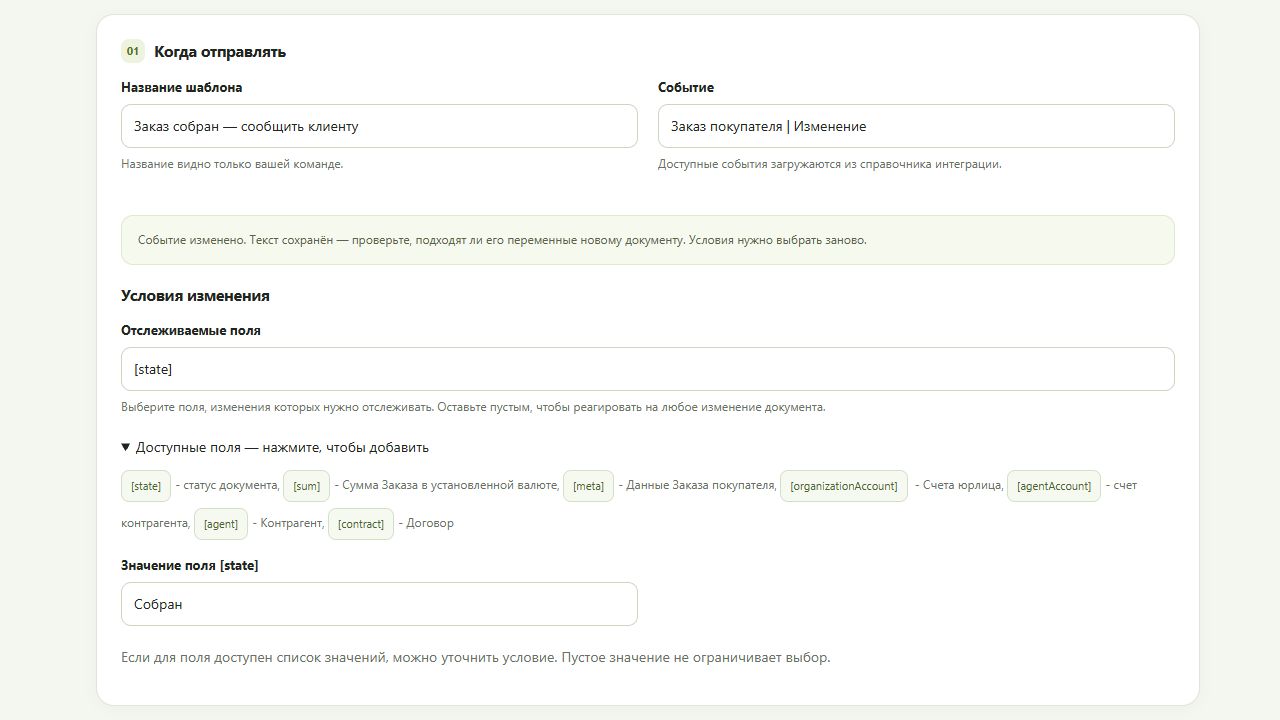
How do empty conditions and multiple fields work?
If “Monitored fields” is left empty, the template responds to any change to the selected document. Selecting multiple fields means that at least one of them must change. For available value lists, all non-empty conditions must be met together; an empty value adds no restriction. For your first workflow, one field — status — and one target value are enough.
Step 3. Specify the recipient
For testing, enter in “Message recipient” only your own number, including the country code. After testing, replace it with [agent.phone] — the counterparty's phone number. For the document owner, use [owner.phone]. Separate multiple recipients with commas; you can combine variables and specific numbers.
Step 4. Prepare the message
[agent.name], your order №[name] is ready for pickup. If you have any questions, reply to this message.Place the cursor in the text and click the required variable in “Selected document variables”. The “Message structure” preview shows the text with variables. The actual name and order number are inserted when the message is sent.
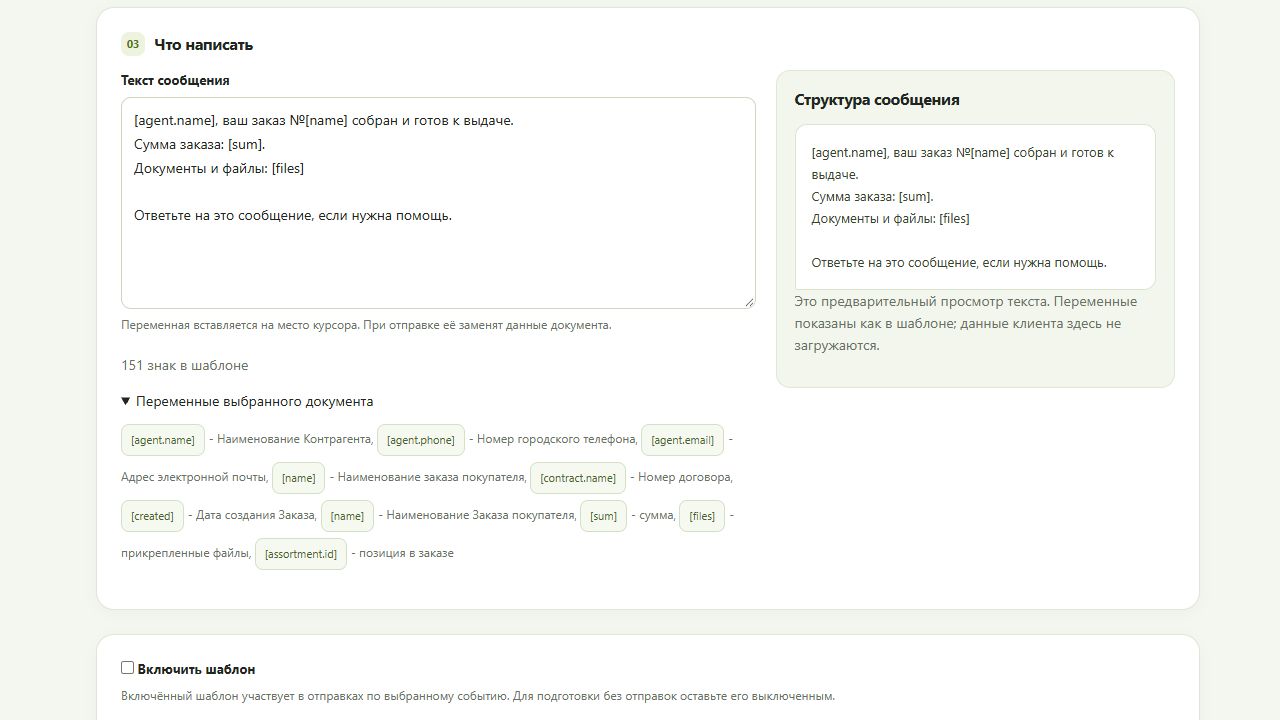
Step 5. Test and launch
Enable the template, click “Save template” and move a test order from another status to the selected status. Check that your number receives a message with the correct text and data. Then specify the production recipient, for example [agent.phone], and save the change.
The event selected for a template is fixed. For a different document or event, create a new template. To pause notifications, disable the template and save it.
5. How to use data and variables
A message can contain document fields and data from related records. For example, the number comes from the order and the customer's name comes from the counterparty record. Available variables depend on the selected entity.
| Variable | What appears in the message |
|---|---|
[agent.name] | The counterparty's name. For a business customer, this may be the company name. |
[name] | The number or name of the current document; for an order, this is the order number. |
[attributes(Название поля)] | The value of a text custom field. Enter its exact name in MoySklad. |
[files] | Links to files already attached to the document. |
For example, for a text custom field named “Трек-номер” (Tracking number):
[agent.name], we have shipped your order. Tracking number: [attributes(Трек-номер)]. Documents: [files]Make sure the field exists in the selected document and is filled in. For other custom field types, data from several related objects or line items, discuss the configuration with support.
[files] provides links to existing document files. If you need an automatically generated printable document, specify this as a separate requirement. Use a test message to check that the recipient can open the required links.
Different editors use different variables. New document events use [agent.name] and [name]. The “Customer re-engagement” tab uses [agent_name] and [bonus_points]. Older templates may also use the previous syntax. Follow the hints in your specific form and retain the notation it uses.
6. Custom workflow: ready date changed
Suppose an order has a custom field named “Ready date”. You want to notify the customer of the new date whenever an employee changes that specific field.
Example of a custom configuration
One field defines both the condition and the content
- Trigger: the order's “Ready date” has changed.
- Recipient: the customer from the linked counterparty record.
- Message: the new date, customer name and order number.
Anna, the ready date for order №154 has changed. Your order will be ready on October 22. If this date does not work for you, reply to this message.
Support will check where the field is stored, its type and the required date format, and prepare the condition and substitution. Precise monitoring of a specific custom field may require development; we will agree on the scope before launch.
Notification about a date change and a reminder when the date arrives are different workflows. Specify which behavior your business needs.
7. How to brief support
Describe the process in terms of the expected result. You can copy and complete this list:
- Where the event occurs: a document or record, such as a purchase order.
- What to respond to: a document being created or a change to a status, date or other field.
- Which condition matters: any change to the field or a particular new value.
- Who to notify: the customer, document owner or a specific employee.
- What to say: a sample final message and the data to insert.
- Where the data is stored: in the document, a related record or a custom field; include field names and types.
Add a “before → after” example and the expected result. We will identify what can be configured, which documents and fields need to be connected and whether development is required. Once agreed, we will test the workflow using a test document.
8. Bringing customers back
Open “Customer re-engagement”, click “+ Create template” and enter “Days since last shipment”, for example 30. If there have been no new shipments during that period, AssistBot sends your prepared invitation.
[agent_name], hello! Time to restock? Tell us what you need and we will help you place another order.Use the buttons below the text to add the customer's name and bonus balance. If needed, select “Create a call task in MoySklad”. Leave the template disabled while preparing it to prevent sending; after testing, enable it and click “Save template”.
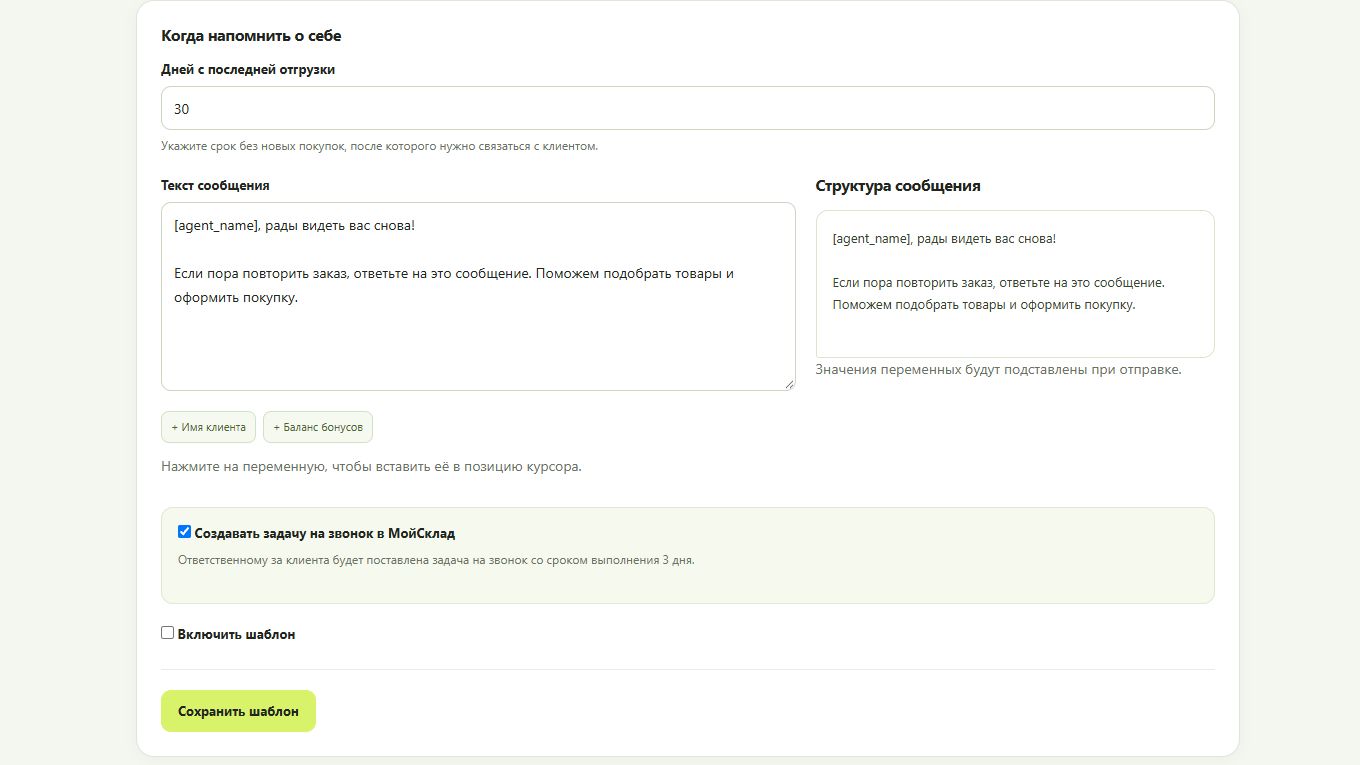
Coordinate testing with support or use a specially prepared test counterparty: this form has no separate test recipient field. The workflow runs in the background and does not schedule delivery for a specific minute.
9. Chats and account dashboard features
Opening a conversation from MoySklad
Sales orders, shipments and counterparty records include an AssistBot panel with an “Open chat” button. It opens the AssistBot dashboard in a separate window using the customer's phone number. Sign in to the dashboard the first time you follow the link. If there is no conversation yet, select a connected channel and start one. The customer record must contain a phone number.
Channels and fallback delivery
Telegram, MAX and WhatsApp are available in one dashboard. Use connected channels simultaneously or configure fallback delivery: if the number is unavailable in the preferred messenger, delivery moves to the next connected channel. Set the sequence in your AssistBot dashboard.
Bulk messaging, automatic replies and AI
In the AssistBot platform account dashboard you can also run bulk messaging with selected days, times and intervals, use automatic replies, surveys, review links and a recipient blocklist. AI assistants are connected and individually configured for your business needs.
10. If a message does not arrive or data is not inserted
- Template: it is enabled and changes have been saved.
- Event: the correct document and action are selected. To test, trigger a new event after saving the template.
- Conditions: the monitored field changed and the selected value matched.
- Recipient and channel: the correct number includes the country code and the required messenger is connected in AssistBot.
- Data: document fields are filled in and variables match the selected entity and the editor's hints.
When contacting support, provide the template name, document, test time, expected text and actual result. This helps identify which step of the workflow to check.
11. How much does the solution cost?
The cost consists of two independent parts:
- Our solution is paid for in the MoySklad marketplace. The current price is listed on the solution page.
- Channel subscription is paid for separately, directly in AssistBot account dashboard. Each connected channel (WhatsApp, Telegram, MAX) requires a separate subscription. Current pricing is available on the AssistBot website.
Start with your requirements
Is the document, field or workflow you need missing from the list? Tell us what should trigger it and what it should say. We will help extend the integration to fit your process.
Discuss configuration